This website is under construction. The product is not yet available.
First steps
- Launch MaxiVista Server
 on the main computer.
 - Launch MaxiVista Viewer
 on the secondary device.
 - Make sure that both devices are connected to the same local wired/wireless network.
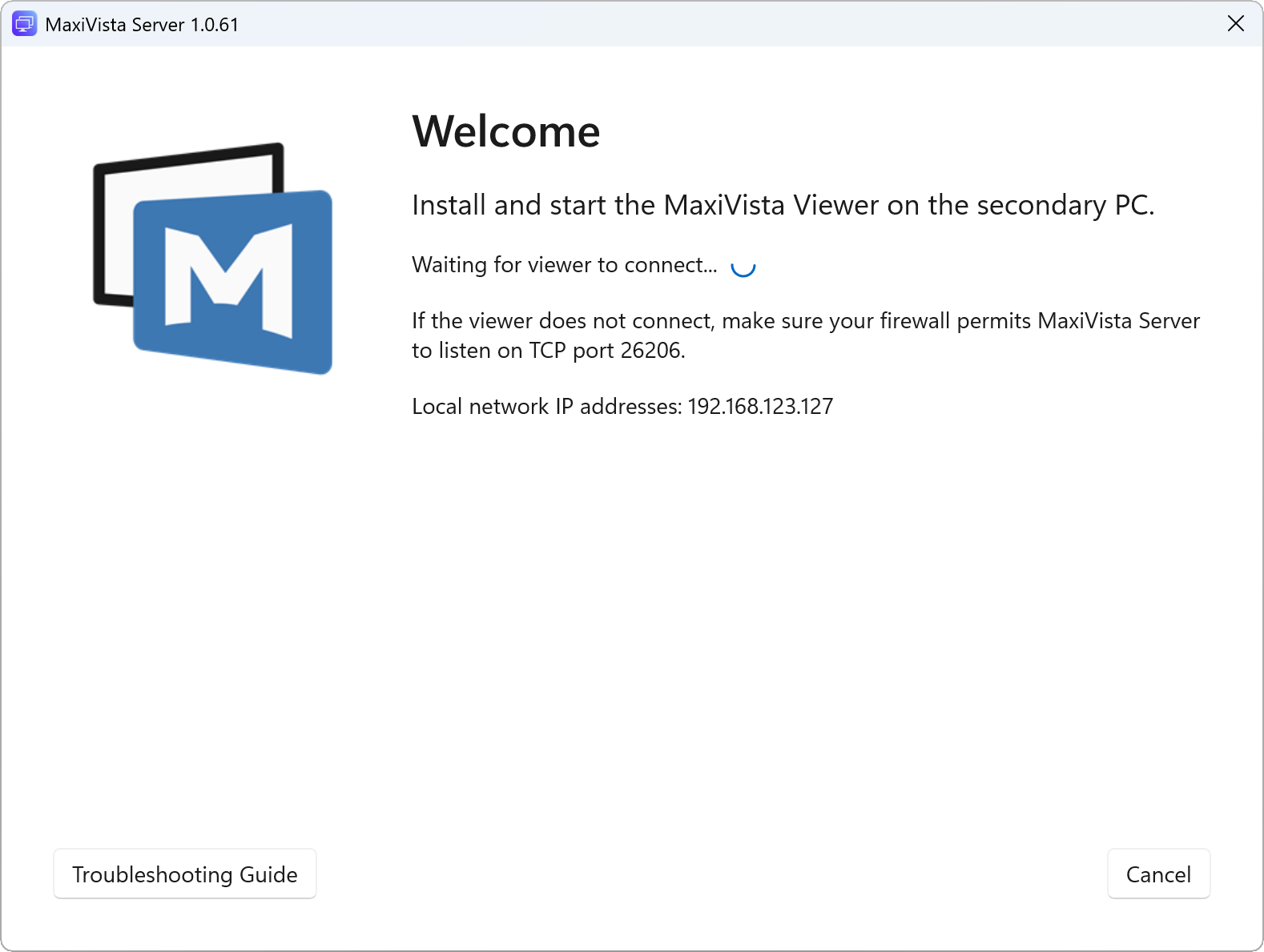
The Wizward will guide you step-by-step through the easy setup:
Tray icon
The MaxiVista icon  in the Windows tray area (or "menu bar" icon on a Mac) indicates program states and is used to control MaxiVista.
Left-click or Right-click the icon to open the options menu:
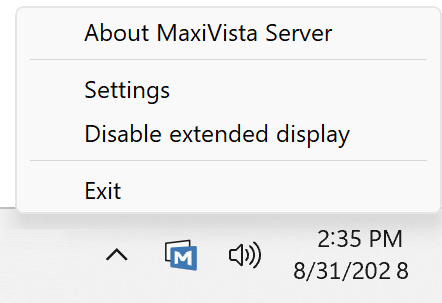
Windows only: If the icon is not visible, make sure, that MaxiVista is actually launched, then click the triangle icon in the task tray and drag the MaxiVista icon from the popup into the system tray to make it permanently visible.